dsquared2 Missing Variant Fields After Filtering? Check URL
- Published
- Updated
First, Determine What Problem You're Facing If dsquared2 product variant fields such as color, size, or model disappear after filtering, or after re-entering the product detail page, don't immediately assume the missing fields mean out of stock, and don't continue placing an order based on memory. First confirm whether the page still shows the same product, whether the filter conditions are still active, and whether the current link can allow the ac
Editor score 4.2 / 5
Menu
First, Determine What Problem You're Facing
If dsquared2 product variant fields such as color, size, or model disappear after filtering, or after re-entering the product detail page, don't immediately assume the missing fields mean out of stock, and don't continue placing an order based on memory. First confirm whether the page still shows the same product, whether the filter conditions are still active, and whether the current link can allow the actual purchasing agent to locate the same product again.

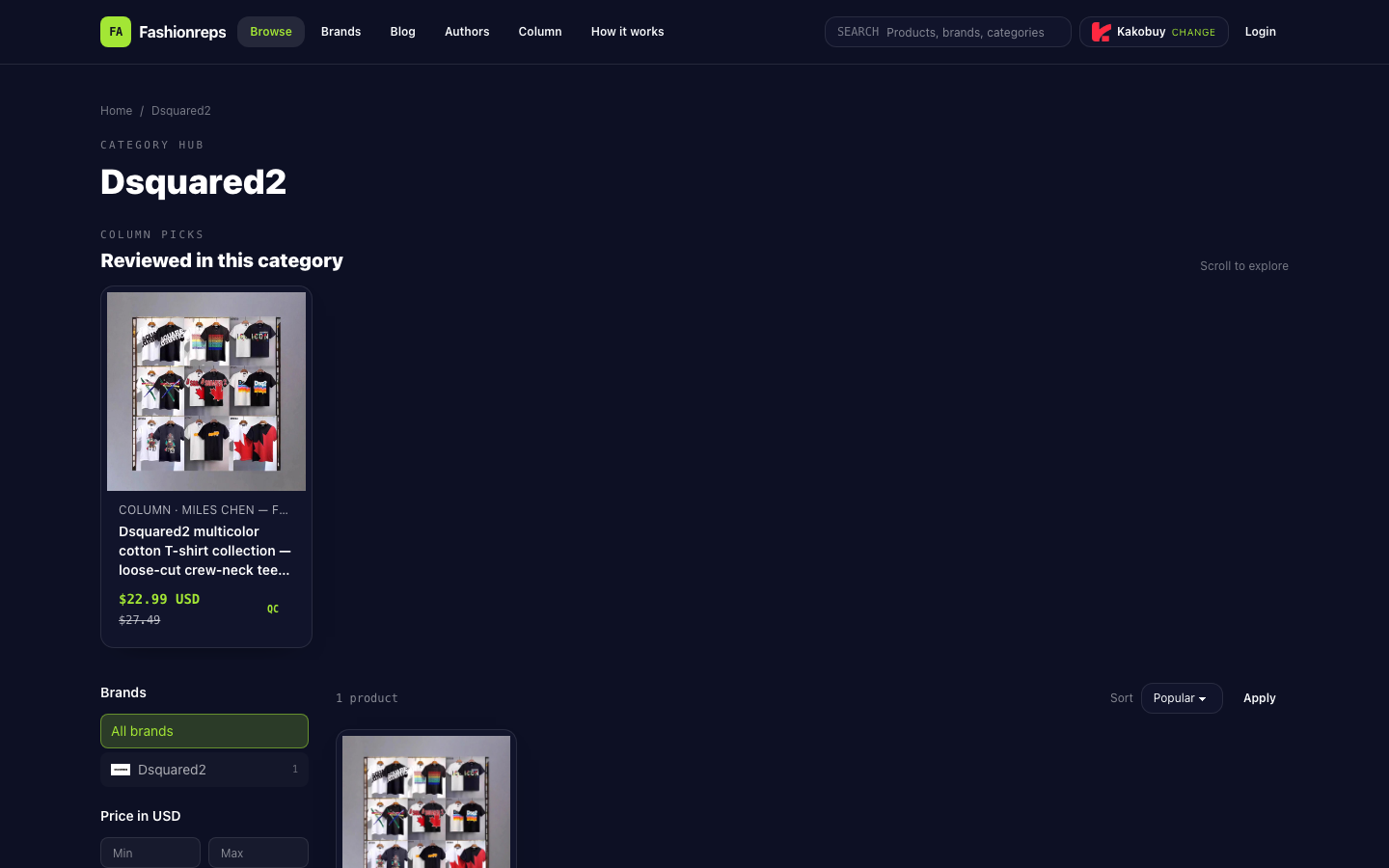
The currently verifiable page is the Dsquared2 category page on fashion-reps. The page displays a collection of Dsquared2 multi-color pure cotton T-shirts, with more than 25 color options shown; the page also provides a reference price of $22.99 and a previous reference price of $27.49. However, this category page information alone cannot prove that a specific product currently has a certain color, size, or model, nor can it replace the variant fields on the detail page.
Step 1: Record the Page State Before and After Filtering
Do not close the original page yet. Save the following information in chronological order:
- Search terms used, such as dsquared2.
- Brand, color, size, price, or other filter conditions selected.
- Product name, thumbnail, price, and visible labels on the product card.
- Product title, main image, description, and variant area after entering the detail page.
- Page URL, opening time, and screenshots before and after the fields disappeared.
Screenshots should include both the browser address bar and key page areas. This helps distinguish whether the fields truly disappeared, or whether they are temporarily invisible due to page scroll position, loading state, or collapsed filter panel.
Step 2: Refresh the Page and Clear Filters
First perform a normal refresh, wait for the page to fully load, and then check whether the variant fields have returned. If they still aren't showing, clear the filter conditions, re-enter the Dsquared2 category page, and confirm whether the product card still exists.
This step only indicates whether the page state has changed; it cannot prove that a variant has become available for purchase again. If the product card still exists after clearing filters, but the detail page has no color, size, or model selection, you should continue to verify and not directly infer that any variant can be ordered.
Step 3: Reopen the Detail Page from the Product Card
Do not rely solely on old tabs from browser history. Go back to the filtered results, reopen the detail page from the current product card, and compare the following:
- Whether the product name is consistent.
- Whether the main image or thumbnail points to the same product.
- Whether the page URL has changed.
- Whether the detail page shows a color, size, or model selection area.
- Whether selecting a field results in a clear selected state on the page.
If the product names are similar but the links are different, treat them as different entries to be confirmed rather than automatically assuming they are the same product. The category page showing collection or multi-color information also does not prove that each color corresponds to the same link.
Step 4: Copy the Current Link and Preserve Evidence
When the variant fields are still missing, copy the current detail page link and place it in the same record as the screenshots. At minimum, the record should include:
- Current page link.
- Product title and visible product information.
- Original filter conditions.
- Desired color, size, or model for purchase.
- Fields that cannot be confirmed on the page.
- Screenshots and query time.
Do not send only the product name, as there may be multiple entries under the same brand or category. Also, do not use the category page URL as a purchase link for a specific variant unless the detail page clearly shows the corresponding fields.
Step 5: Switch Variants and Observe Page Feedback
If the variant fields reappear on the detail page, you can select the target color, size, or model one by one, and observe whether there is a clear selected state, price change, or link change on the page. After that, take a new screenshot to confirm that the selection has not been cleared after refreshing or returning to the page.
If the fields only appear under a certain filter combination, or if there is no recognizable state change after selection, mark it as unconfirmed. The page appearing clickable does not mean the actual purchasing agent will definitely recognize that selection.
Step 6: Check Cart State Before Payment
Before proceeding to payment, check again whether the target color, size, or model is retained in the cart or pending purchase record. If the cart only shows the brand, product name, or an image, without the variant information you need, do not fill in the missing fields from memory beyond the screenshots.
The focus of this troubleshooting is the discovery stage after filtering and re-entering the detail page, not handling cart field conflicts that have already been generated. Therefore, if the variant information cannot be confirmed before entering the cart, pause the operation and provide the link and evidence to the actual purchasing agent for verification.
When to Seek Help from the Actual Agent
When the variant fields cannot be restored after multiple refreshes, or when the information on the category page and detail page does not correspond, you can provide the following to the actual purchasing agent:
- Current detail page link.
- Product screenshot and page URL.
- Target color, size, or model.
- Screenshots before and after the variant fields disappeared.
- Ask if they can confirm the product link, SKU, or purchasable variants.
Request a clear response stating the fields they can confirm. If they can only guess based on the product name, or cannot provide a specific link, SKU, or variant information, do not consider this response as verified.
Clear Stop Conditions
It is recommended to stop further filtering and payment if any of the following occurs:
- The current link cannot confirm the specific product.
- The target color, size, or model does not appear again.
- There is no clear page state change after selecting a variant.
- The cart does not retain the target variant information.
- There is obvious inconsistency between the product card, detail page, and screenshots.
- The actual purchasing agent cannot confirm the link, SKU, or variant.
Based on the currently verifiable category page information, we can only confirm that the page has a collection of Dsquared2 multi-color pure cotton T-shirts and reference price information; we cannot confirm that a specific color, size, or model is still purchasable. When the variant fields cannot be re-verified, keeping the link and screenshots and pausing payment is a more prudent judgment than continuing based on page impressions.
Daniel Reyes is Editor-in-Chief, covering cross-border shopping agents, QC photo review, warehouse consolidation, and shipping-line comparison. They write most of the agent-fee and shipping-line explainers, maintain the desk's five-point scoring standard, and sign off on every published score. Each review receives two checks: the order log of agent fee, QC time, shipping line, and arrival date, followed by the bench notes. Before a new score goes live, Daniel compares it with the last six months of retests, connecting the review's explanations, test records, and scoring checks.