Jordan Size Mismatch: Check Before Paying
- Published
- Updated
The size or color you see on the Jordan product page may not appear in the exact same text in your cart and at checkout. What you really need to confirm is not a single field on the page, but whether the final order retains the correct item, color, size, and style information all together. This article covers only one scenario: when the size, col
Editor score 4.2 / 5
Menu

The size or color you see on the Jordan product page may not appear in the exact same text in your cart and at checkout. What you really need to confirm is not a single field on the page, but whether the final order retains the correct item, color, size, and style information all together.
This article covers only one scenario: when the size, color, or style fields on the product detail page, cart, or checkout page don't match up. If any key option can't be matched, don't pay yet.
Record the product page info first
Once you open the product detail page, save a screenshot of the current page and note down the following:
- The product title and the Jordan style shown on the page.
- The color, size, and quantity you have selected.
- Whether the page displays a style code, SKU, or other variant identifier.
- The images on the product detail page, especially for items with clear differences in color or silhouette.
- The date and time of your check.
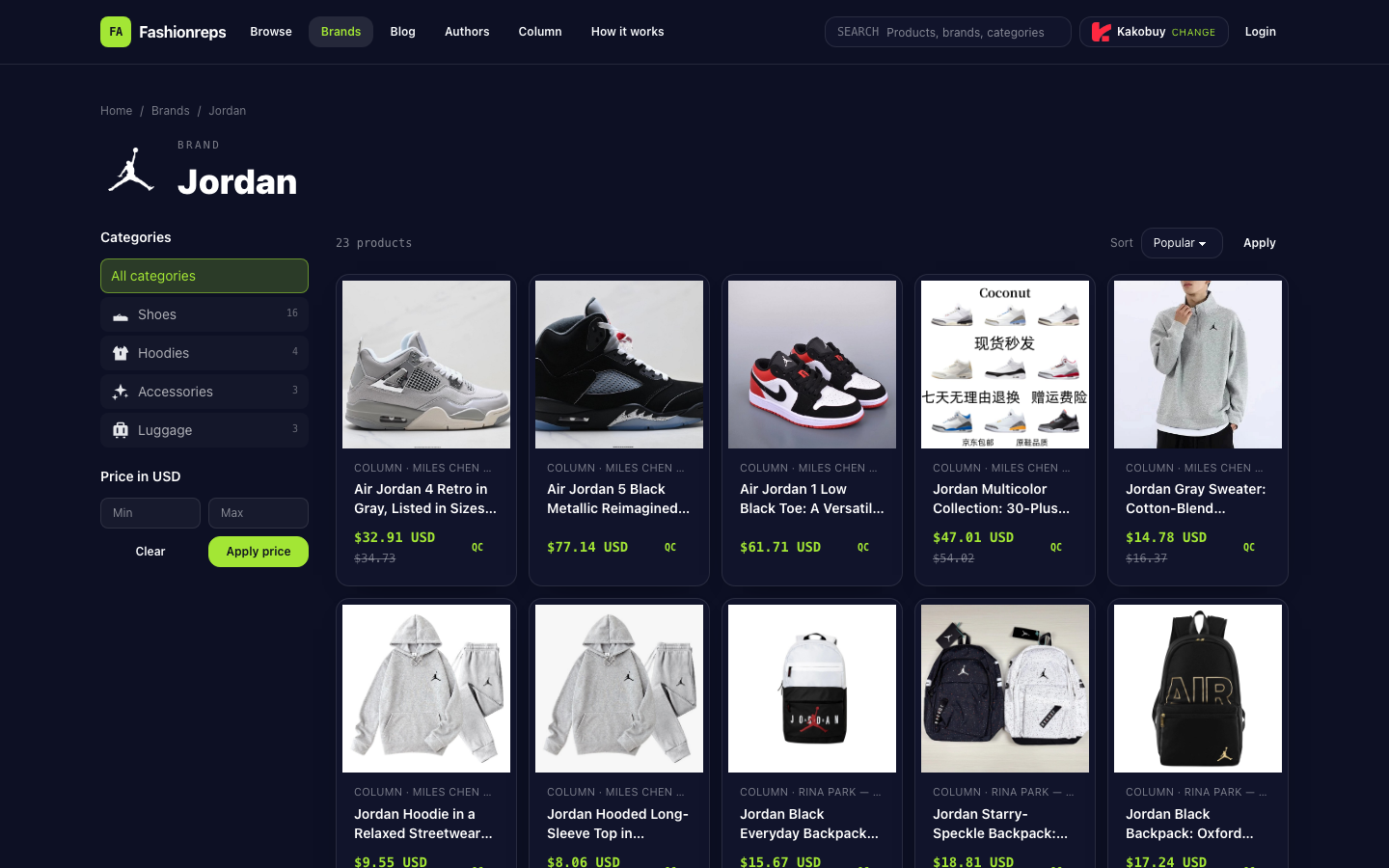
Fashionreps' Jordan brand page features different categories like shoes, hoodies, accessories, and luggage, and the size ranges and color options vary depending on the specific product. So don't assume the actual variant just from the Jordan name in the product title, and don't apply another product's size range to the current one.
If the page doesn't show a style code, record "page does not show," and don't fill in a code yourself. If there's already a clear conflict between the title, images, and option text, pause before adding to cart.
Check three places in order
1. Product detail page
After confirming your options, recheck whether the page still shows the same set of information:
- Does the product title stay the same?
- Does the color text match the option buttons and product images?
- Is the size the one you actually selected, not a default?
- After changing quantity, are the color and size still not reset?
If the size options change after switching colors, don't assume this is normal syncing. Click the target size again, confirm the page clearly shows the color and size combination, then add to cart.
2. Cart
After adding to cart, don't just look at the thumbnail. Open the item's detailed options and compare each item against the record you saved:
- Product title or item identifier.
- Color.
- Size.
- Quantity.
- Style code or other variant info, if shown on the page.
If the cart only shows the product title and not the color or size, you can't assume the options were passed correctly. Go back to the product page and reselect, and see if the cart creates a new line or updates the existing options. Don't keep increasing quantity when you can't tell two variants apart.
3. Order confirmation and checkout page
Before proceeding to checkout, check whether the final variant appears in the order summary. Focus on:
- Did the color change from an English name to a different abbreviation or code?
- Did the size change from a number to a letter, or from a letter to another sizing system?
- Does the checkout page show a different image, product title, or style code from the cart?
- After changing quantity, address, or other order info, do the size and color remain consistent?
If the fields on the checkout page can't be matched to the product detail page, don't use price, thumbnail, or product name as a substitute for variant confirmation. Same price doesn't prove same color and size.
How to tell if a difference requires pausing payment
You can group the information into three types:
- Text format differences: e.g., case, spacing, or name abbreviation variations, but the page also provides a matching style code or a clear variant description.
- Missing fields: The cart or checkout page doesn't show color, size, or style info, so you can't confirm if it was passed through.
- Substantial conflicts: The size, color, product image, or style code point to different variants.
The first type can be double-checked, but don't automatically assume it's consistent based on experience alone. For the second and third types, you should pause payment and first submit a confirmation request to the shopping agent that actually processes the order. Fashionreps' page notes that the purchase button leads to your chosen shopping agent, and orders, payments, and shipping are handled on the agent's site; therefore, variant issues should be verified through the agent's order or customer service portal, not by treating Fashionreps' brand catalog as the order system.
What to submit to the shopping agent
When asking for help, submit reviewable materials directly, and avoid just saying "wrong size." It's recommended to include:
- Screenshot of the product detail page, with color, size, and style code fields circled.
- Screenshot of the cart, with the actual variant info displayed circled.
- Screenshot of the checkout or order confirmation page, with the inconsistent spots circled.
- The product page URL or the item identifier in the order.
- The unique combination you want to confirm, e.g., "Black, size 42, quantity 1."
- A clear question: "Please confirm which color and size the warehouse will actually process after the order is placed; if you can't confirm, please don't proceed with payment."
In the screenshots, keep the page title, variant fields, and time info visible, while covering up unnecessary personal info, payment details, and the full shipping address. Don't edit the product fields in the screenshots, or the agent may not be able to judge what the original page showed.
Don't pay in these situations
Stop the checkout if any of the following occurs:
- The size selected on the product page differs from the size shown in the cart or checkout.
- The color text is different, and there's no matching code, style code, or customer service confirmation.
- The product image is clearly inconsistent with the selected color or style.
- The checkout page hides key variants like color and size, so you can't confirm the final order content.
- After changing quantity or other order info, the variant gets reset without a clear notice on the page.
- Customer service can only confirm the product name, not the actual color and size.
- You can't save a continuous record of the product page, cart, and checkout page.
Don't resolve field conflicts by guessing default options, clicking pay repeatedly, or relying on modifying the order afterward. Only proceed with payment when the agent explicitly confirms the item, color, size, and quantity in the final order, and your page records match up.
Final check
Before paying, keep at least three records: the product detail page, the cart, and the checkout page. The three don't need to use the exact same wording, but they must correspond through item identifier, color, size, and style information. If even one item can't be matched, stop the order before payment, and submit screenshots and a clear variant confirmation question to the shopping agent that actually processes the order.
Daniel Reyes is Editor-in-Chief, covering cross-border shopping agents, QC photo review, warehouse consolidation, and shipping-line comparison. They write most of the agent-fee and shipping-line explainers, maintain the desk's five-point scoring standard, and sign off on every published score. Each review receives two checks: the order log of agent fee, QC time, shipping line, and arrival date, followed by the bench notes. Before a new score goes live, Daniel compares it with the last six months of retests, connecting the review's explanations, test records, and scoring checks.