Fix Moncler Image Sync After Size Switch: Step-by-Step
- Published
- Updated
Introduction On fashionreps' Moncler product page, if the main image doesn't change with your selections after switching color or size, don't rush to order, and don't judge product details solely by the default image. This could be due to page loading delays, the option itself having no corresponding image, or the product information and images indeed not being linked. This article addresses only one issue: images not syncing
Editor score 4.2 / 5
Menu
Introduction
On fashionreps' Moncler product page, if the main image doesn't change with your selections after switching color or size, don't rush to order, and don't judge product details solely by the default image. This could be due to page loading delays, the option itself having no corresponding image, or the product information and images indeed not being linked.
This article addresses only one issue: images not syncing after switching Moncler product variants. After completing the checks, you should be able to determine whether this is a temporary page display issue, the current option doesn't have a dedicated image, or you need to submit evidence to the platform support team for further confirmation. This article does not apply to issues that have already progressed to the order, warehouse inspection, or logistics stage.

Clarify the Verification Question for Moncler Variant Image Sync Issues
First, note the complete product title currently displayed on the page, as well as the brand, style, color, and size options you see. Don't just remember vague names like "Moncler jacket," as the same category page may contain multiple products.
Also, clarify the following three points:
- Which image is displayed when the page opens by default.
- Which color or size you switched to that caused the image not to change.
- Whether you want to verify the color correspondence, size correspondence, or whether the product images belong to the current product.
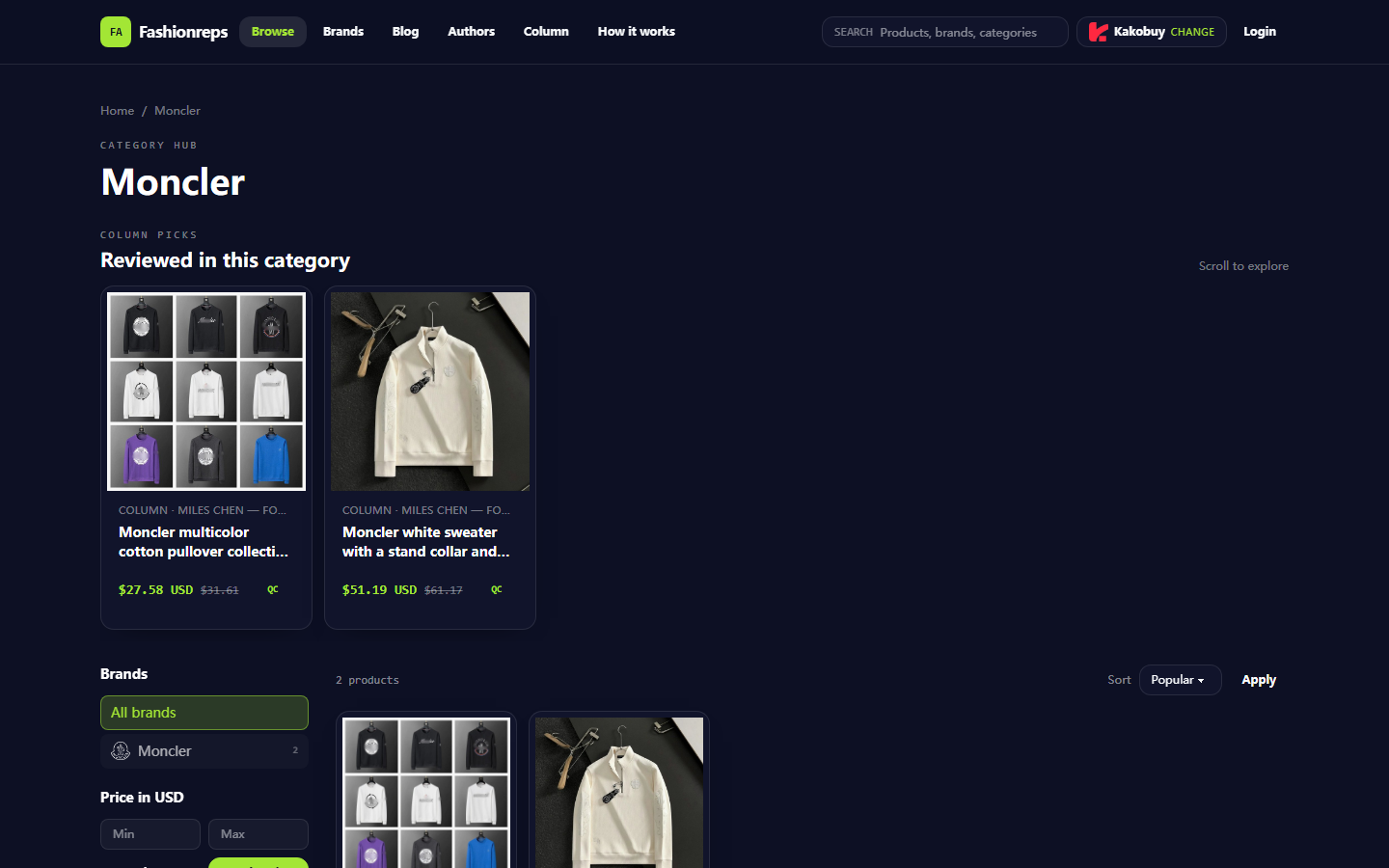
Verifiable page samples on fashionreps show that the Moncler category page includes product name, reference price, brand filter, and QC entry information; however, the category page alone cannot prove that every product variant provides independent images, nor can it confirm that the product page has malfunctioned. 🧭
Save Product Page, Style, Color, Size, and Page Update Time
Before continuing to refresh or switch repeatedly, save a complete set of records. It is recommended to use browser screenshots and also keep the page URL, screenshot time, and option status.
At minimum, record the following:
- Complete product title.
- Current page URL.
- Brand and style information displayed on the page.
- Currently selected color.
- Currently selected size.
- Default image and image status after switching.
- Whether loading indicators, error messages, or image placeholders appear on the page.
- The time you last refreshed the page.
If the screenshot contains account information, order numbers, addresses, payment information, or other private data, cover them before saving or submitting. Do not expose complete orders, passports, payment cards, or shipping labels to prove image sync issues.
The page update time should be based on the time you actually opened and recorded it. Prices, inventory, options, and image status may change, so a single page observation cannot be considered a long-term valid conclusion. 📌
Check Default Image, Color Switch, and Size Selection Results Separately
Operate in a fixed order to avoid changing multiple variables at once:
- Without selecting any variant, record the default main image and number of thumbnails.
- Select only one color, wait for the image to load, then record whether the main image changes.
- Return to the same color, select another size, and record whether the image changes.
- Re-select the first color and size, and check whether the page restores the original image.
- If the page provides thumbnails, click each one and record whether its content matches the current options.
- If a loading indicator appears after changing options, wait for the page to finish loading before judging.
Do not rapidly click multiple colors and sizes in the same test round, and do not copy the link before the page has finished loading. This will make screenshots unable to indicate which option triggered the issue. 🔎
Compare Product Title, Option Fields, Image Descriptions, and Current Link
Image sync issues do not necessarily indicate a page error. You need to compare visible information in four categories:
| Comparison Item | What to Check | Possible Conclusion |
|---|---|---|
| Product Title | Does it clearly correspond to the Moncler product and specific style? | Determine if the current page might be the wrong product |
| Option Fields | Do the color, size, and other variants actually exist? | Determine if the issue is missing options or display anomaly |
| Image Content | Do color, cut, and details change with options? | Determine if there is an obvious correspondence |
| Page Description | Does it state that images are for illustration, default, or QC? | Determine if images can serve as evidence for the current variant |
| Current Link | After refreshing, does it retain the same product and options? | Rule out copying an old page or wrong link |
If the title, options, and link all point to the same product, but the page does not explain the correspondence between images and variants, you can only conclude that "the page does not provide sufficient image correspondence evidence," not further infer that the actual received product will definitely not match the images.
Distinguish Between Page Loading Anomalies, Options Without Images, and True Image Mismatch
You can make a preliminary classification based on the following signs:
Page loading anomalies typically manifest as blank image areas, thumbnail loading failures, images briefly flickering and then recovering, or different results for the same option after refreshing. In this case, stop rapid switching and save a screenshot after one complete load.
Options without images typically manifest as color and size being selectable, but all options continue to display the same default image, and the page does not clearly state that each variant has independent images. This situation cannot be directly considered a malfunction; it only means the current page does not provide enough variant image information.
True image mismatch usually requires stronger evidence, such as the page clearly labeling the current color but persistently displaying obvious features of another color; or stable and repeatable mismatches between titles, options, and images across different product pages. A single refresh or screenshot is insufficient to make this determination.
If you can reproduce the same issue under the same browser, same page, and same options, record the time, options, and results of each test separately. 🧩
Eliminate Interference from Refreshing, Repeated Switching, and Incorrectly Copied Links
After completing the first round of records, you may perform a low-risk review:
- Reopen the original product page; do not continue from an old tab.
- Wait for the main content and images to finish loading.
- Select only one color, then only one size.
- Close any pop-ups that might cover the page and recheck the images.
- Do not open multiple identical product pages simultaneously for comparison to avoid copying the wrong link.
- Do not proceed to payment or order submission before confirming option status.
If the page returns to normal after a fresh open, the original issue is more likely temporary loading or residual old page state; if the issue remains reproducible, keep the review evidence. Do not delete the first screenshot just because it recovered once, as the initial record helps support determine page state changes.
When to Stop Ordering and Keep Screenshots, Page URL, and Problem Description
Stop ordering when the following occurs:
- You cannot confirm which image corresponds to the currently selected color.
- The option name is inconsistent with the clearly visible color or style in the image.
- The page repeatedly displays different products or variant images after refreshing.
- The product title, option fields, and image descriptions contradict each other.
- The page cannot stably retain your selected color or size.
- You need to rely on guessing to determine which version you will ultimately purchase.
Before submitting a problem, prepare a brief description including the product title, page URL, verification time, selected color and size, default image result, image result after switching, and the specific issue you want the platform to confirm. The description should distinguish between "page display anomaly" and "concern about physical inconsistency," and not write unverified speculation as established fact.
Submit Evidence via fashionreps Official Support Channels and Wait for Confirmation
Prefer to use the Contact, support, or problem feedback entry indicated on fashionreps pages to submit materials. Provide only the information needed to solve the problem; do not upload complete orders, payment cards, passports, or shipping labels containing private addresses.
Recommended to submit:
- Product title and current page URL.
- Page verification date and time.
- Selected color and size.
- Default image screenshot.
- Screenshot after switching.
- If necessary, attach a review screenshot after reopening the page once.
- The specific issue you want the support team to confirm, such as "Does this color and size have corresponding images?"
Before receiving a clear response, do not treat image correspondence as confirmed fact, and do not continue to pay or submit irrevocable orders. If the platform support team requests further verification, follow their public process to provide the minimum necessary information and keep submission records. ✅
Final Judgment
The core of this issue is not whether the image changes, but whether the current image can be reliably matched to the product variant you selected. If it is only a temporary loading anomaly, reopen the page and complete a fixed-order review; if the page always displays only the default image, treat it as insufficient information; if the title, options, and images persistently mismatch, stop ordering and submit evidence.
Before receiving clear confirmation, the safest approach is to keep the page URL, option status, and screenshots, not infer color, size, or style from the default image, and not treat product information on the category page as complete proof of a specific variant.
Daniel Reyes is Editor-in-Chief, covering cross-border shopping agents, QC photo review, warehouse consolidation, and shipping-line comparison. They write most of the agent-fee and shipping-line explainers, maintain the desk's five-point scoring standard, and sign off on every published score. Each review receives two checks: the order log of agent fee, QC time, shipping line, and arrival date, followed by the bench notes. Before a new score goes live, Daniel compares it with the last six months of retests, connecting the review's explanations, test records, and scoring checks.